
Sessionize Mobile App
The Sessionize mobile app is a web-based event app that allows you to:
Because the app runs directly in your browser, there’s no need to download anything from an app store or marketplace.
Accessing the App
Once the schedule is announced, you can launch the Sessionize event app using the Plan Your Schedule button on the schedule page.
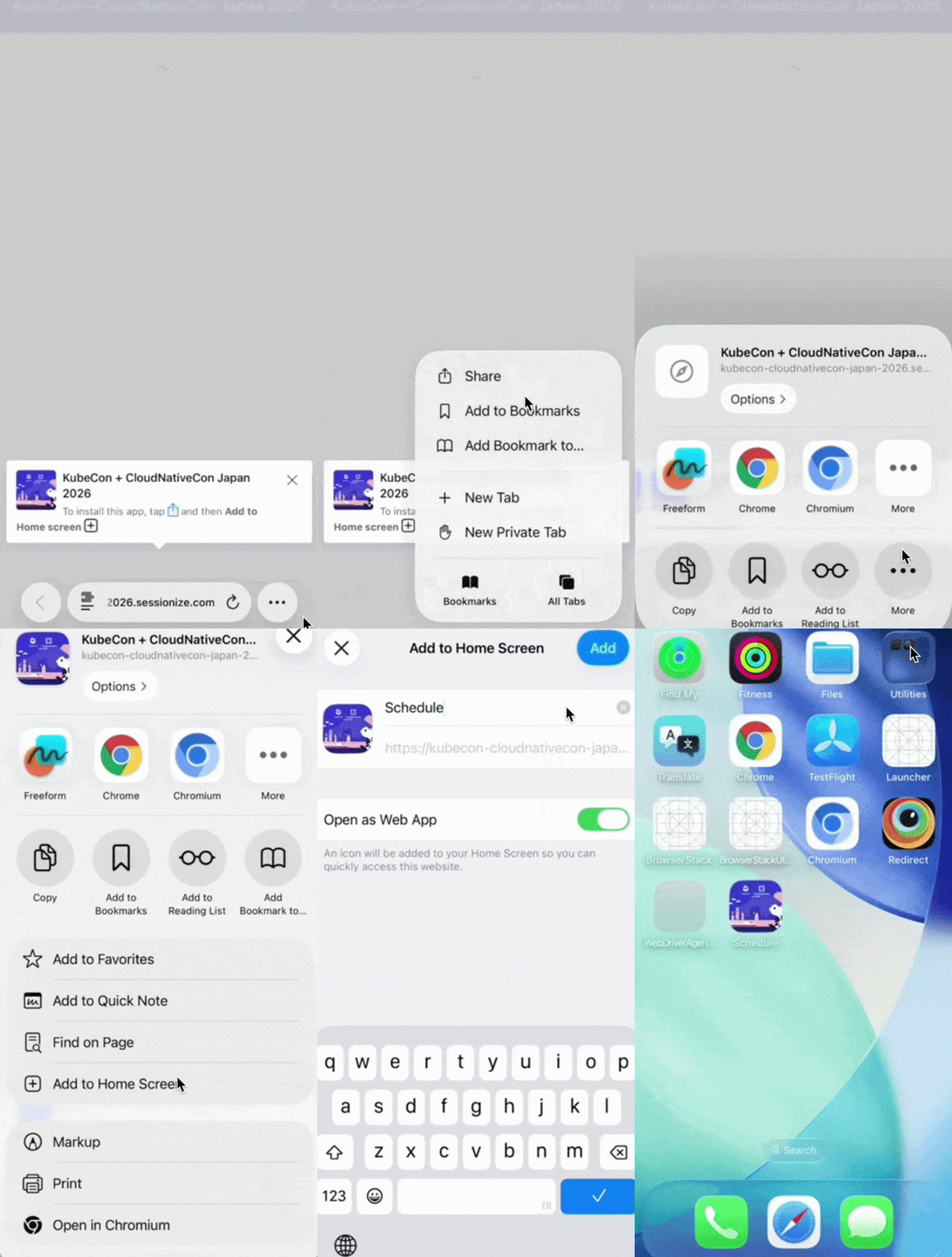
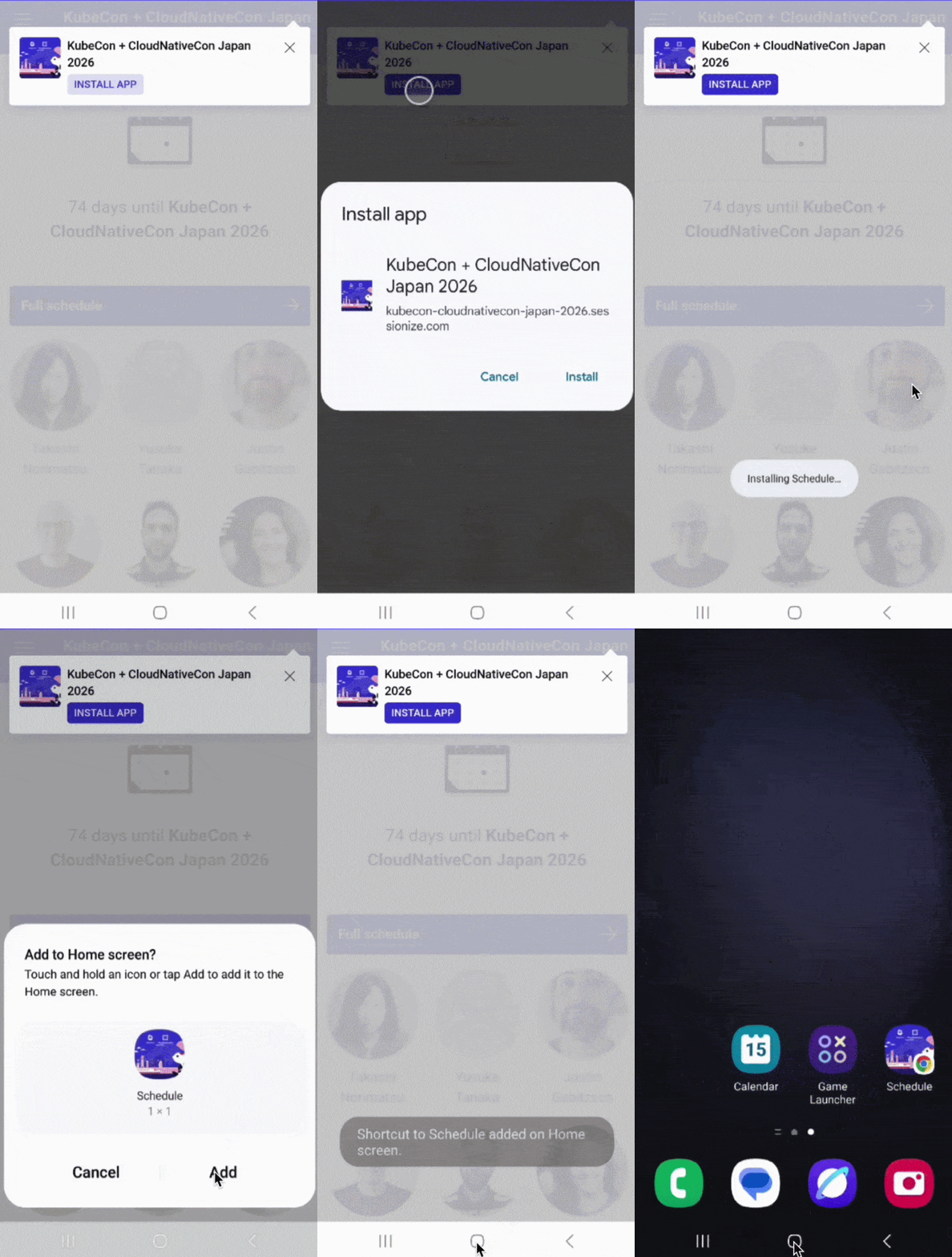
For quick access during the event, it can also optionally be added to your device’s home screen:
iOS
Android
On some Huawei/HarmonyOS devices, the prompts and menu names may look slightly different depending on your browser and OS version.
Building Your Personalized Agenda
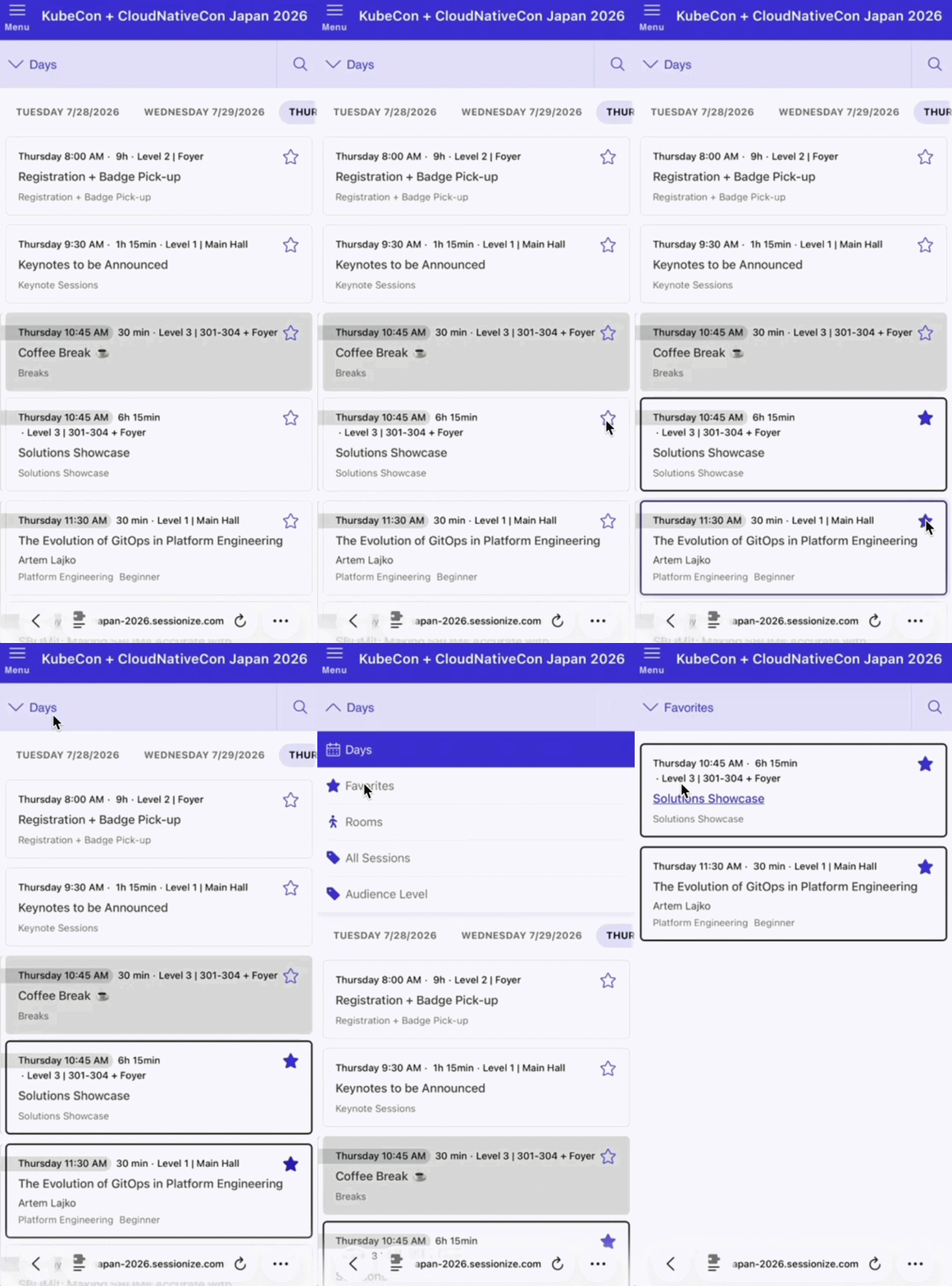
To add sessions to your personalized agenda:
To access your personalized agenda:
Syncing Your Agenda Across Devices
By default, your agenda is saved locally on your device. If you want to use your personalized agenda across multiple devices, you can sync it using a sync code.
To sync your agenda:
On your second device:
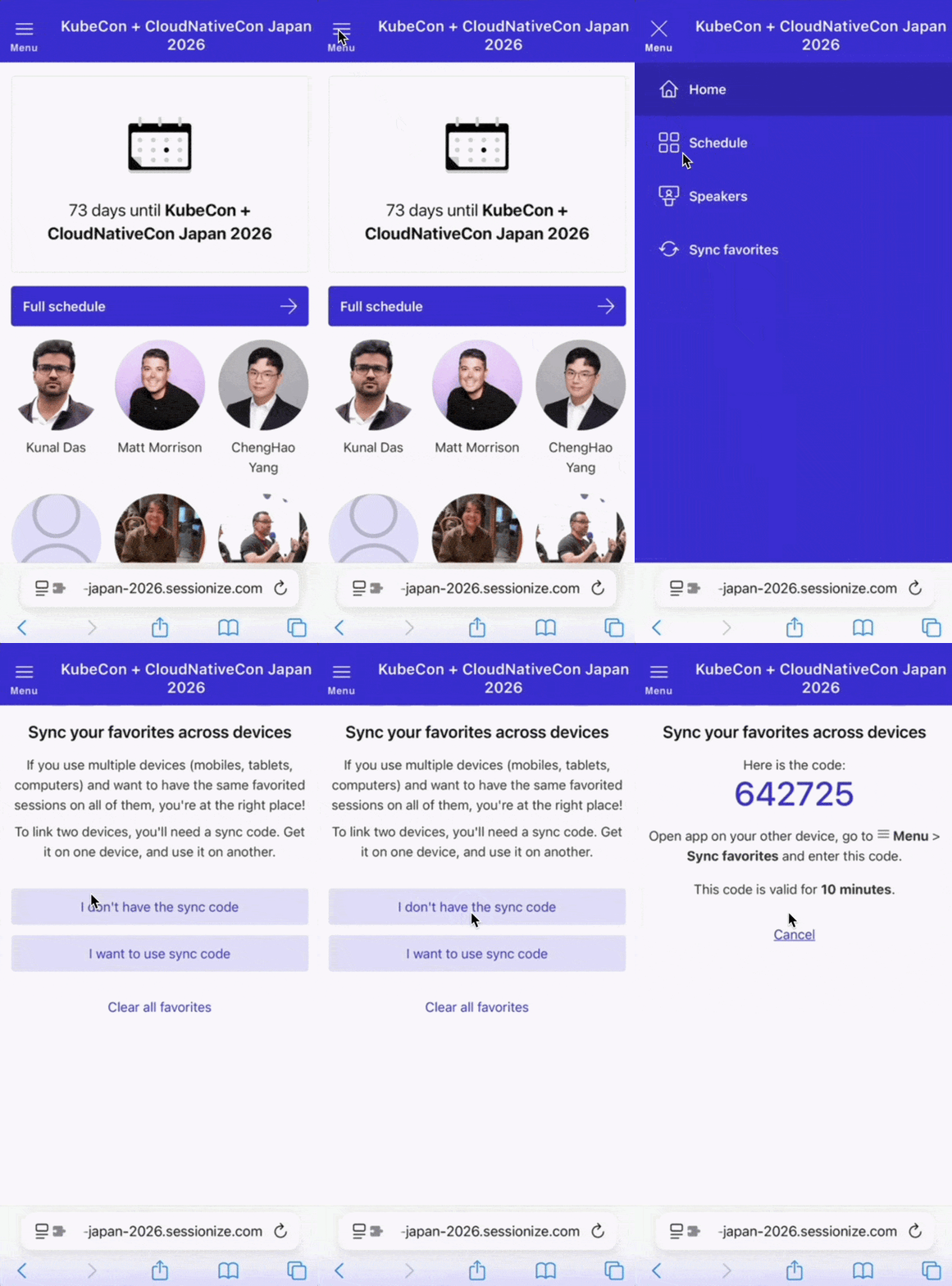
Please allow up to 5 minutes for devices to sync.
Sessionize screenshots and recordings are used with permission from Sessionize and are provided for demonstration purposes only.